Watchface Builder for Garmin — User Manual & FAQ
Welcome to the user manual and FAQ for Watchface Builder for Garmin (WFB). It covers the editor, building and installing watch faces, and advanced techniques — compiled from the official documentation and community discussions on r/watchfacebuilder.
Developer: u/joshuahxh-1
Moderators: u/Economy-Annual1219 · u/Joshuahxh
Found something missing or wrong? This page is open-source — edit it on GitHub and submit a pull request.
Table of Contents
- What Is Watchface Builder for Garmin?
- Getting Started
- Building Your First Watch Face
- The Editor
- Installing Watch Faces on Your Garmin Device
- API Keys & Weather Data
- Tokens & Data Fields
- Expressions, Visibility & Math
- Custom Fonts & Bitmap Fonts (BMF)
- Images, Icons & Animations
- App Properties & Custom User Settings
- Language & Localization
- Battery Life Optimization
- Memory Optimization
- Publishing to Garmin Connect IQ
- Premium Membership
- Troubleshooting Common Errors
- Known Limitations & Quirks
- MIP Display Issues
- Tips & Advanced Techniques
- Privacy & Data Policy
- Keyboard & Mouse Shortcuts
- Community Resources
What Is Watchface Builder for Garmin?
Watchface Builder for Garmin (WFB) is a free, web-based tool that lets you design and build custom watch face apps for Garmin devices — no coding required. You design visually in a browser-based editor, and WFB generates a working Garmin watch face app (.prg file) that you can install on your device.
Key features include:
- A drag-and-drop visual editor for designing watch faces
- Support for 100+ Garmin device models
- 679+ data tokens (heart rate, weather, steps, GPS, battery, and much more)
- Custom fonts, images, animated GIFs, and icon support
- Math expressions and visibility conditions for dynamic elements
- App properties for user-customizable settings
- Export to ConnectIQ (
.iqfile) for publishing on the Garmin store (premium) - Automated simulator testing (premium)
- A dedicated desktop installer app for easy sideloading
Getting Started
Creating an Account
- Go to garmin.watchfacebuilder.com.
-
Click **Login Register** in the top-right corner. - Create a free account to save your designs.
The WFB Interface
- Home page — Browse community-created watch faces. You can clone public designs (if the creator allows it) to learn from them or use as a starting point. Each tile shows three small access-status icons at the bottom (orange = on/yes, gray = off/no): the first indicates whether the design is shared, the second whether you can download the
.prgfile, and the third (an “orange pencil” when on) whether you can open it in the Builder and modify it. - Builder — The main editor where you design your watch face. WFB has both a new editor and a legacy editor; the new editor is the one documented in The Editor section below — a task-grouped toolbar (File · Edit · Arrange · View, an ADD palette row, Help and a Build button), Figma-style smart guides, multi-select, a right-click context menu and full keyboard shortcuts (
Shift+?shows them all). The legacy editor remains available for its simpler layout; note that some editor settings (such as the watch overlay toggle) may not persist between sessions there. - Installer — A desktop companion app that helps you transfer watch faces to your device. The recommended cross-platform option today is the open-source
wfbInstaller— see Method 1 of the install section below. - BMF for Garmin — The Bitmap Font tool (v2.1.1) for creating custom pixel-perfect fonts.
- Tokens page — A searchable reference of all 679+ data tokens available for use in your designs.
- Send API Key — Where you configure your WFB API key for weather and location data.
Choosing Your Device
When you start a new design in the Builder, you select your specific Garmin device model. This is important because each device has a different screen resolution and shape (round, rectangle, etc.). Common resolutions include:
- 176 × 176 — Instinct series
- 260 × 260 — Fenix 7 Pro, some Forerunner models
- 280 × 280 — Fenix 7X, Enduro
- 390 × 390 — Vivoactive 6
- 416 × 416 — Forerunner 265, Epix series
- 454 × 454 — Epix 2 Pro 51mm, Fenix 8 47mm
- 448 × 486 — Venu series
Building Your First Watch Face
Step-by-Step Basics
- Open the Builder and select your Garmin device model.
- Add objects to the canvas — text fields, images, shapes, lines, arcs, and data fields.
- Assign data tokens to objects to display dynamic information (time, date, heart rate, steps, weather, etc.).
- Style your design by adjusting position (X, Y), size, colors, and fonts.
- Use the layer list (left panel) to manage stacking order — drag rows to reorder, or use Arrange → Bring forward / Send backward. Check “Layer Object” on an image to allow it to appear on top of other objects. Objects can be locked (Lock icon on the row) to prevent accidental selection, or hidden (Eye icon) to work on layers behind them.
- Apply a color palette (optional) — open File → Editor settings and click Browse to choose from hundreds of color schemes. Each palette has four variations that change the order colors are applied. You can further customize by dragging the color swatches to rearrange assignments.
- Preview your design — use the View menu to check every power mode and extreme data values.
- Click the blue “Build” button (top right, or
Ctrl+B) to build the watch face app. - Download the
.prgfile (or.zipfile if it includes app properties).
Can I Build Without Premium?
Yes! The core building features are free. After building, click the download button below the watch face preview to get your .prg file. Premium unlocks additional features like ConnectIQ export and simulator testing.
Can I Get the Source Code (Monkey C) of My Watch Face?
No. The generated code is not human-readable and is not designed for manual editing. WFB compiles directly to a binary .prg file. If you need custom Monkey C code, you would need to write a ConnectIQ app from scratch using the Garmin SDK.
Can I Change Predefined App Properties?
Predefined app properties like “OpenWeatherMap API key” and “Auth. User Name” can be customized. This functionality is being improved within WFB, but in the meantime you can follow community guides on r/watchfacebuilder for workarounds.
Working with Objects in the Editor
The editor received a major Figma-style overhaul — selection, smart guides, alignment tools, circular layouts, a right-click context menu and a full keyboard-shortcut system. The complete tour lives in The Editor section below; the full key list is in Keyboard & Mouse Shortcuts. Quick primer:
- Select: click an object, drag a selection box on empty canvas, or click its row in the layer list. Shift+click or Ctrl+click adds/removes objects; Shift+drag adds everything in the box to the current selection.
- Move: drag (smart guides snap to edges, centers, equal spacing and circles), or nudge with the arrow keys (1 px) / Shift+arrow (10 px).
- Resize / rotate: drag the corner/rotate handles. Text and data fields are sized through their font size instead of handles, and data fields intentionally can’t be scaled or rotated — even inside a multi-selection.
- Duplicate:
Ctrl+D, Alt+drag, or the right-click menu. - Delete:
DeleteorBackspace. - Alignment property: widgets support three horizontal alignment modes — Center (default, content centers on the X position), Left (content starts at the X position), and Right (content ends at the X position). Vertical alignment is always centered.
The Layer List
The panel on the left lists every object on the canvas:
- Select from a row — useful for picking objects hidden underneath other objects; hovering a row highlights the object on the canvas.
- Lock icon — locks an object so it can only be selected from its row (prevents accidental drag selection).
- Eye icon — hides/shows the object while you work on layers beneath it. Editor-only; doesn’t affect the built watch face.
- Badges — a green certificate marks premium data fields, and the orange OWM logo marks fields that need an OpenWeatherMap API key.
- Drag rows to change stacking order; double-click (or the pen icon) to rename.
Building and Downloading Your Watch Face
When your design is ready, click Save & Build in the top right of the editor (also referred to as Build App in the official help). WFB compiles your design and offers a download:
- A
.prgfile alone — for designs without app properties. - A
.zipfile — when your design includes app properties; unzip and use the.prginside.
Signed-in users can click Open to retrieve any previous design saved to their account.
The Editor
The Builder’s editor works like a modern design tool (Figma/Penpot): direct manipulation on the canvas, smart guides while dragging, a task-grouped toolbar, and keyboard shortcuts for everything. Press Shift+? at any time to open the Keyboard shortcuts & mouse panel — it opens automatically on your very first visit and stays out of the way after you close it.
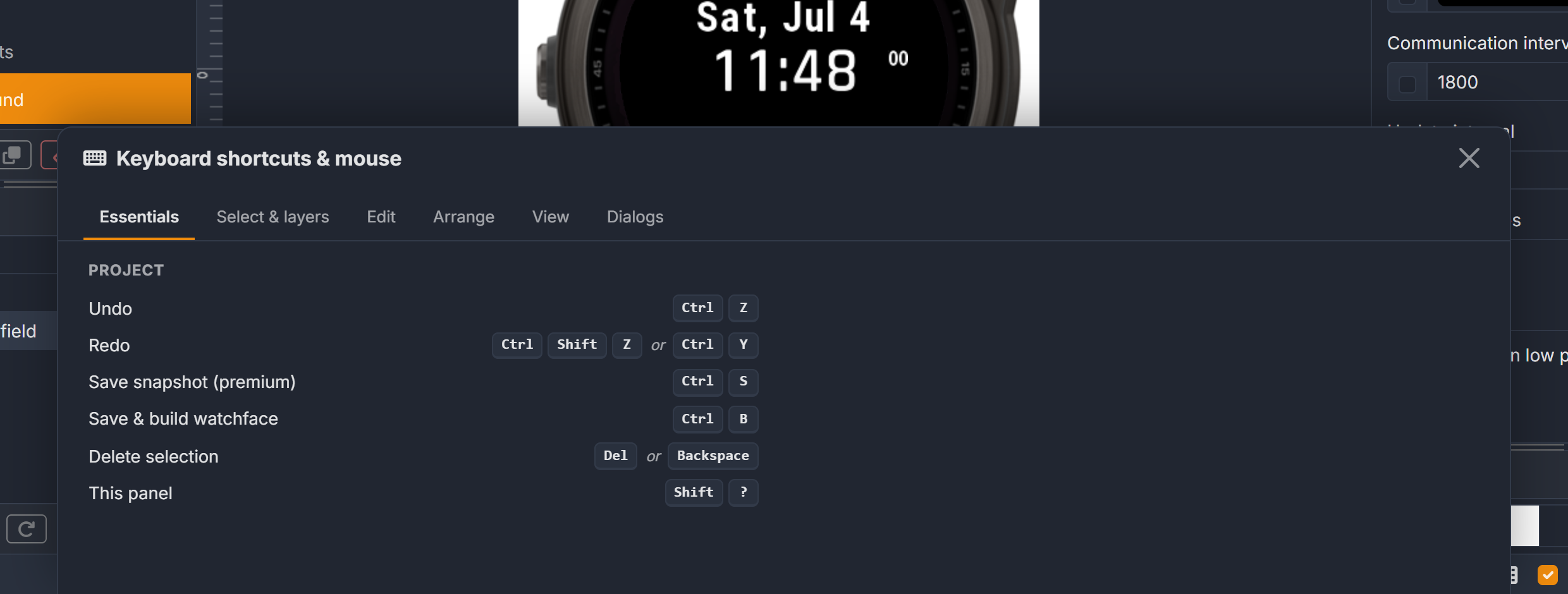 The Shift+? panel is non-modal — try shortcuts while it’s open.
The Workspace
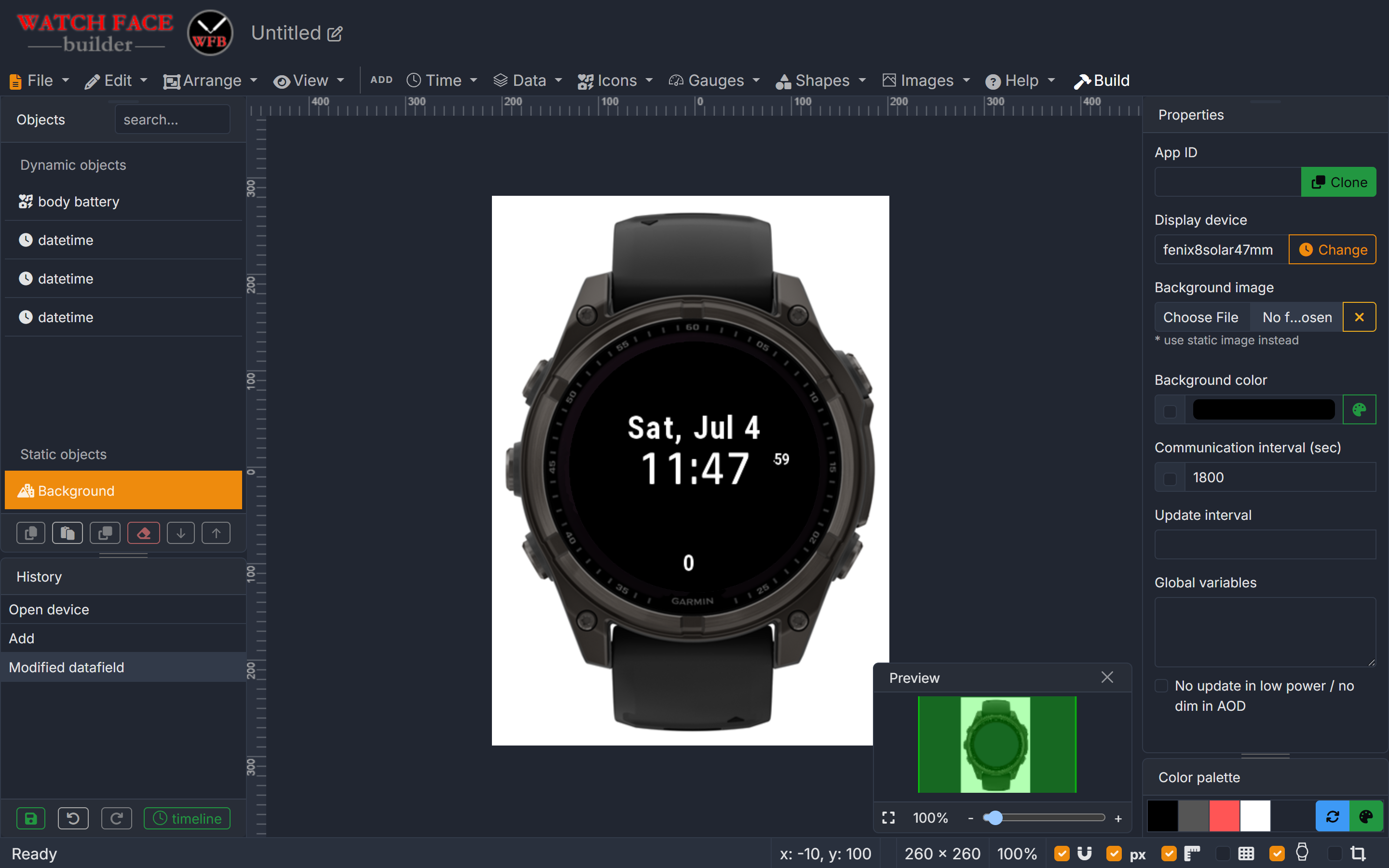 The editor with the Starter template on a fēnix 8: layer list and History (left), canvas with watch overlay and rulers (center), properties panel (right), status bar (bottom), preview card (bottom-right).
- Layer list (left) — every object on the canvas, front-most on top. Click to select, drag to reorder, double-click (or the pen icon) to rename. Each row has an eye (hide while editing — editor-only) and a lock (selectable only from its row). Badges mark premium fields (green certificate) and fields that need an OpenWeatherMap key (orange OWM logo).
- Canvas (center) — the watch screen at the exact pixel resolution of your chosen device, with optional watch-body overlay, grid and rulers.
- Properties panel (right) — settings of the selected object (position, size, colors, font, data source, visibility, update interval…). With a multi-selection it shows the shared properties; mixed types expose the common fields.
-
Status bar (bottom) — live readouts and canvas toggles:
Item Shows Click x, y cursor position relative to the watch center — size selection size in pixels opens a dialog to type exact width / height / angle screen device screen resolution — zoom % current zoom level shows / hides the preview card Snap · Pixel · Ruler · Grid · Overlay · Clip canvas aids toggle - Preview card (bottom-right) — a live miniature of the whole watchface with your current viewport marked. Drag inside it to pan the editor; the fit button zooms to the watch screen; × hides it (the zoom % readout brings it back).
- History panel (below the layer list) — every undoable step by name (“Move”, “Align left”, “Stack variants”…). Premium members also get the build Timeline here to restore earlier built versions.
 The status bar. The size readout opens an exact-size dialog; the zoom readout shows/hides the preview card.
The Toolbar
 Three zones: menus that work on the design, the ADD palettes that put things into it, and Help + the blue Build button.
| Menu | What’s inside |
|---|---|
| File | Save & Build (Ctrl+B), Save snapshot (premium, Ctrl+S), App properties, Localization & strings, Fonts, Colors, Editor settings, AOD pixel estimate, Back to gallery |
| Edit | Undo/Redo, Copy/Paste/Duplicate/Delete, Select all |
| Arrange | Align (6 ways), distribute spacing, bring/send layer order, distribute & duplicate around a circle, flip, round position to pixel, variant stacks |
| View | Filter objects by power mode, preview data values (live/longest/shortest), custom visibility expression preview, zoom presets |
| Time / Data / Icons / Gauges / Shapes / Images | The ADD palettes — the most-used elements of each kind, ordered by real-world usage across 800+ community designs. Every palette ends with a Browse all… entry that opens the full searchable catalog |
| Help | The shortcut panel and links to this wiki |
| Build | The always-visible blue button — same as Ctrl+B |
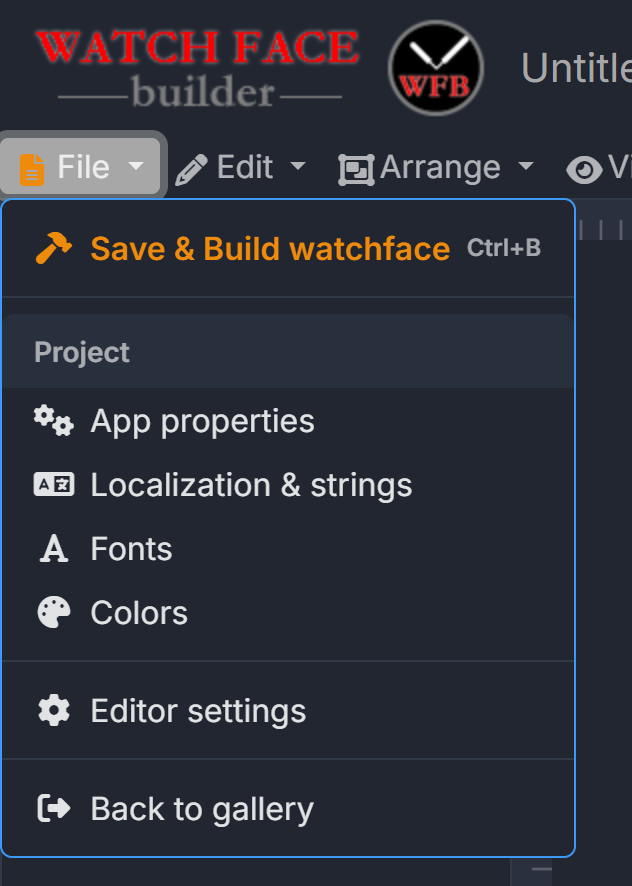 The File menu: build & save, project assets (properties, strings, fonts, colors), editor settings.
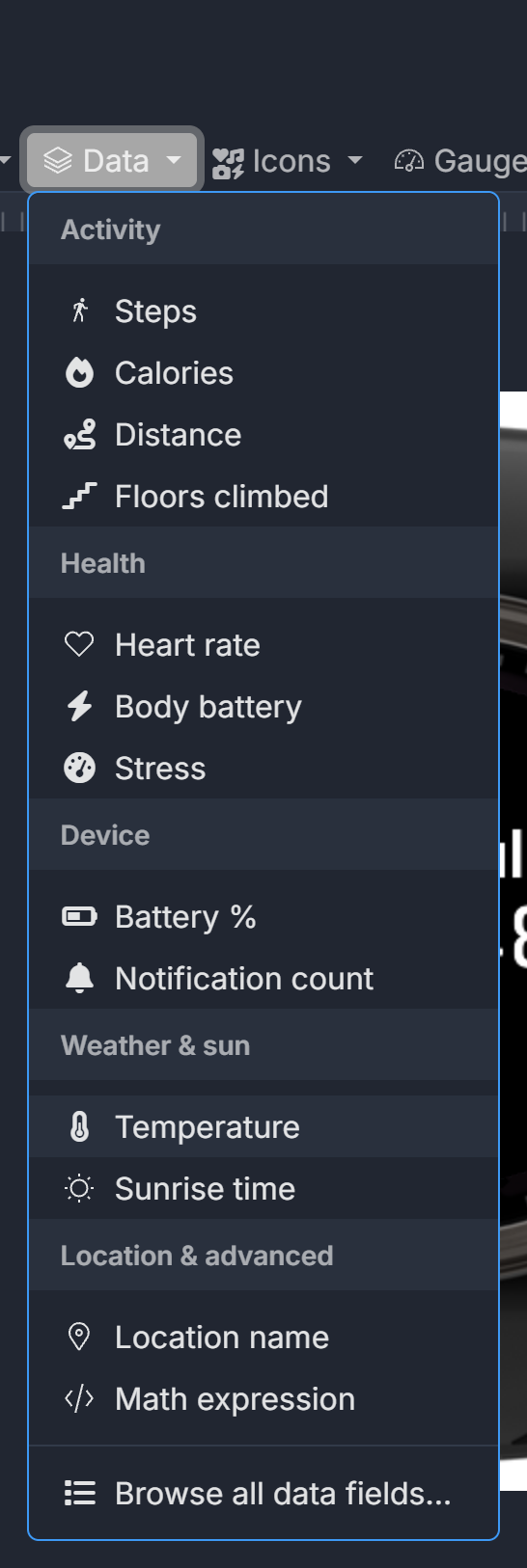 An ADD palette (Data): the most-used fields grouped by topic, with the full catalog at the bottom.
Selecting Objects
| Where | Gesture | Result |
|---|---|---|
| Canvas | click | select the object under the cursor |
| Canvas | Shift+click / Ctrl+click |
add / remove it from the selection |
| Canvas | drag on empty space | marquee-select everything in the box |
| Canvas | Shift+drag on empty space |
marquee adds to the current selection |
| Layer list | click | select (and reveal) the object |
| Layer list | Ctrl+click |
add / remove from the selection |
| Layer list | Shift+click |
select the whole range between two rows |
| Anywhere | Ctrl+A / Esc |
select all (visible, unlocked) / deselect |
- Hovering a layer row highlights that object on the canvas — the quickest way to find something buried under other layers.
- Locked objects can only be selected from their layer row; hidden objects are skipped by clicks and Select all.
- A multi-selection edits shared properties in one go (same-type selections get the full panel, mixed ones the common fields), and the status bar shows the combined size.
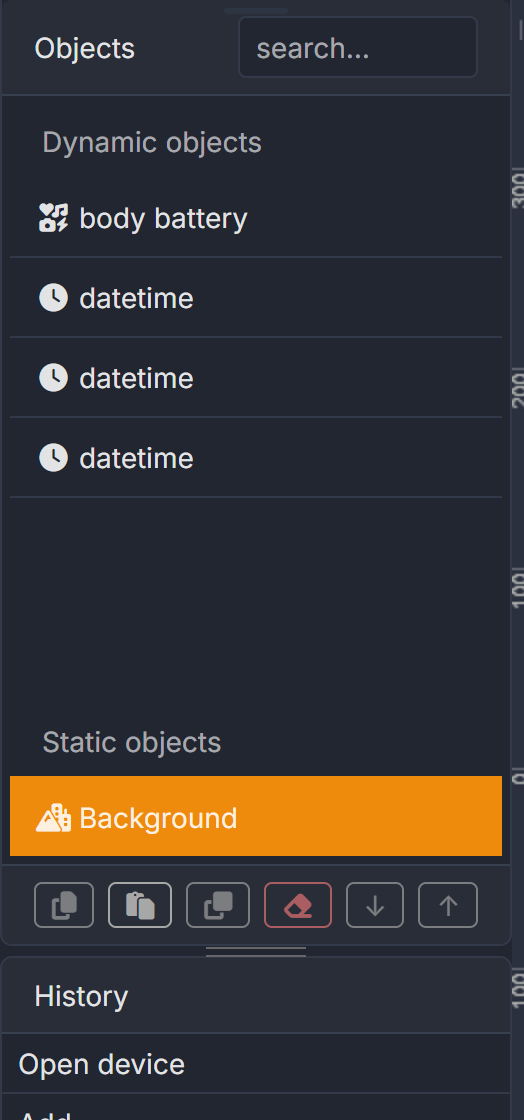 The layer list groups dynamic and static objects; the row toolbar and the History list sit below.
Moving & Snapping
While you drag, the editor snaps to whatever is nearby and draws a guide so you can see why it snapped:
| Guide | Meaning |
|---|---|
| Red line through edges/centers | your object lines up with another object’s edge or center (or the watch center) |
| Pixel badges between objects | equal spacing — drag a middle object to equalize its two gaps, or an outer object to match an existing gap in the row (Penpot-style) |
| Dashed circle | ring magnet — the object’s center locked onto the same radius as other objects around the watch center; perfect for dial ticks and complications |
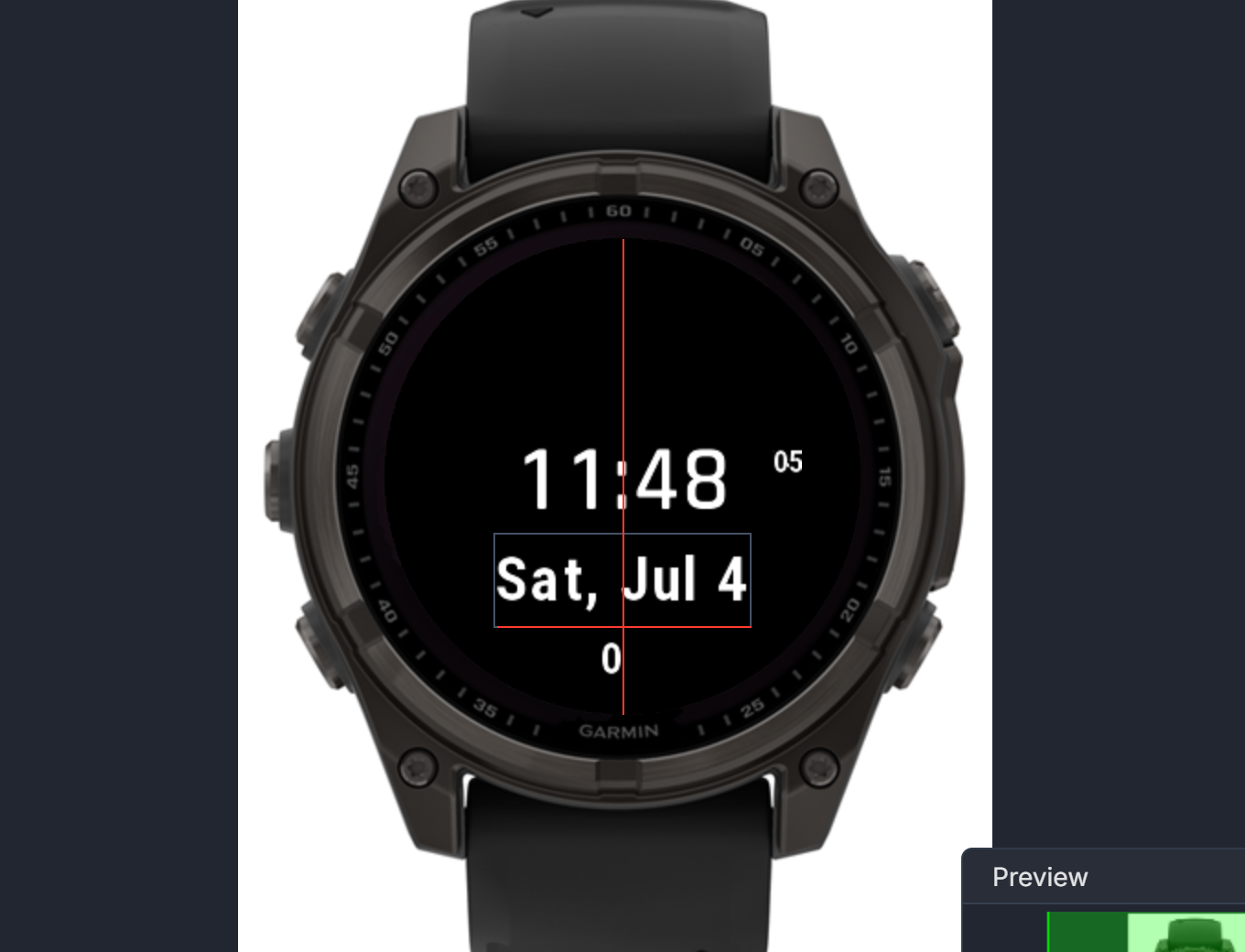 Mid-drag: the date field captured the watch-center column — the red guide shows why it snapped.
- Hold Alt to bypass all snapping for a precise freehand drag; hold Shift to constrain the drag to one axis.
- Pixel snapping (footer toggle) keeps positions on whole pixels; when the grid is shown (
G), drags land on grid lines instead. - Alt+drag an object to drag out a copy of it.
Precision & Measurement
- Arrow keys nudge 1 px; Shift+arrows 10 px.
- Alt+hover shows pixel distances from the current selection to whatever object is under the cursor.
- Rulers (
U) mark the selection’s extent on both axes; the grid (G) helps eyeball alignment at a glance. - Type exact numbers: X/Y in the properties panel, width/height/angle via the size readout in the status bar.
- Round position to pixel (Arrange menu or right-click) fixes fractional positions left over from zoomed drags.
Zoom & Pan
| Action | How |
|---|---|
| Zoom at cursor | mouse wheel |
| Zoom to fit the watch screen | Shift+1 (or View menu / preview card fit button) |
| Zoom to selection | Shift+2 |
| Zoom to 100% | Shift+0 |
| Pan | Space+drag, right-drag, or drag inside the preview card |
The Right-Click Menu
Right-click an object for its context menu: clipboard actions, layer order (bring/send), flips, round-to-pixel and variant stacks. Right-click empty canvas for paste, select all, zoom presets and grid/ruler toggles. (A right-drag pans instead — the menu only opens on a clean click.)
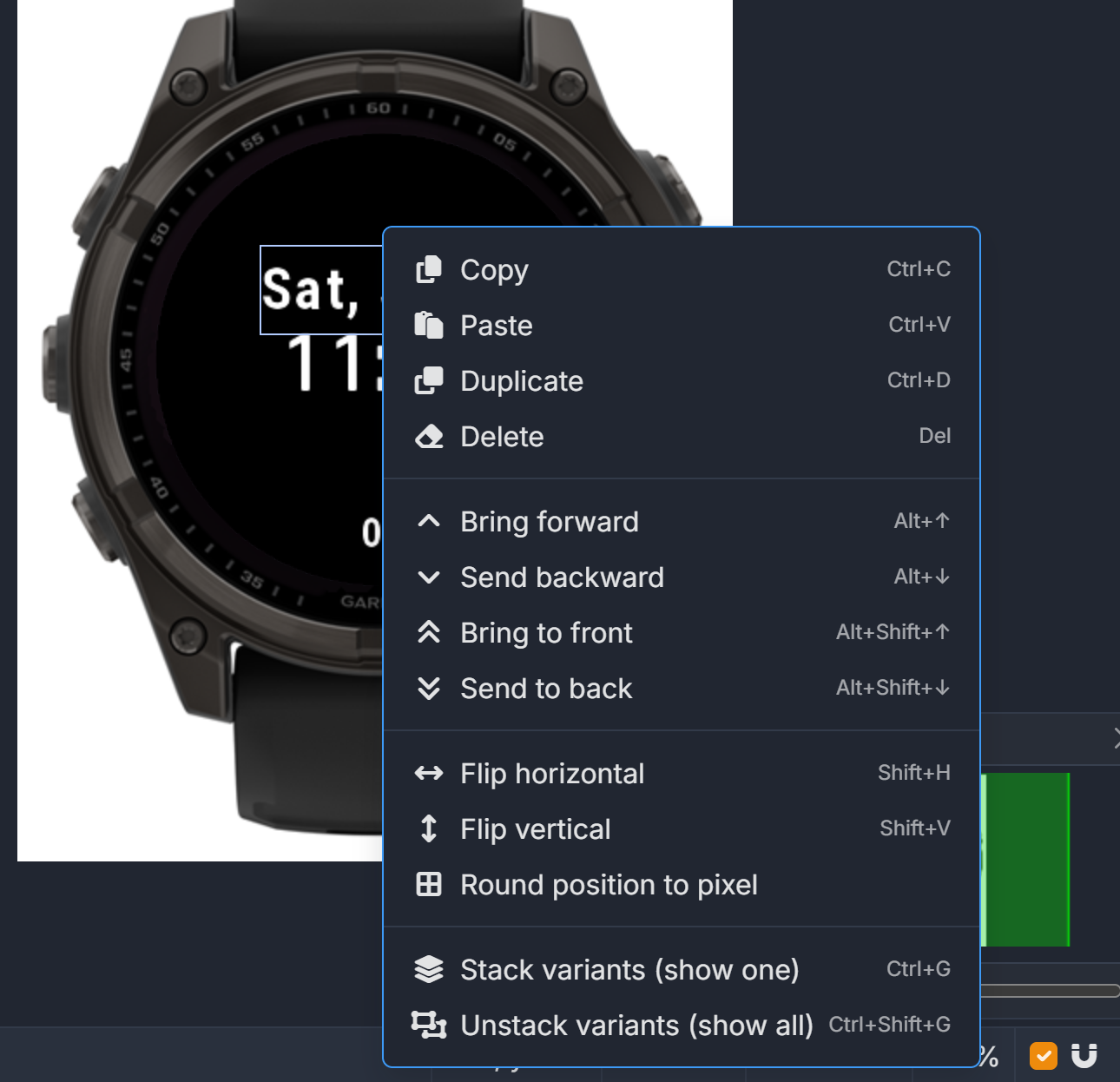 Right-clicking an object: every entry mirrors its menu twin, shortcuts included.
Arrange Tools
- Align left / horizontal centers / right / top / vertical centers / bottom — Figma semantics: several selected objects align to the bounds of the whole selection; a single object aligns to the watch screen itself (e.g. Align horizontal centers centers it on the dial).
- Distribute horizontal or vertical spacing evenly (outermost objects stay put).
- Distribute around circle… spreads the selected objects evenly on the ring they already sit on. Duplicate around circle… turns one object into 12/24/60 copies around the dial — instant tick marks.
- Bring forward / send backward (
Alt+↑/↓) and to front / to back (Alt+Shift+↑/↓) control stacking; the layer list shows the order and supports drag-reordering. - Flip horizontal/vertical (
Shift+H/V) — static shapes and images only; data-driven objects can’t be mirrored.
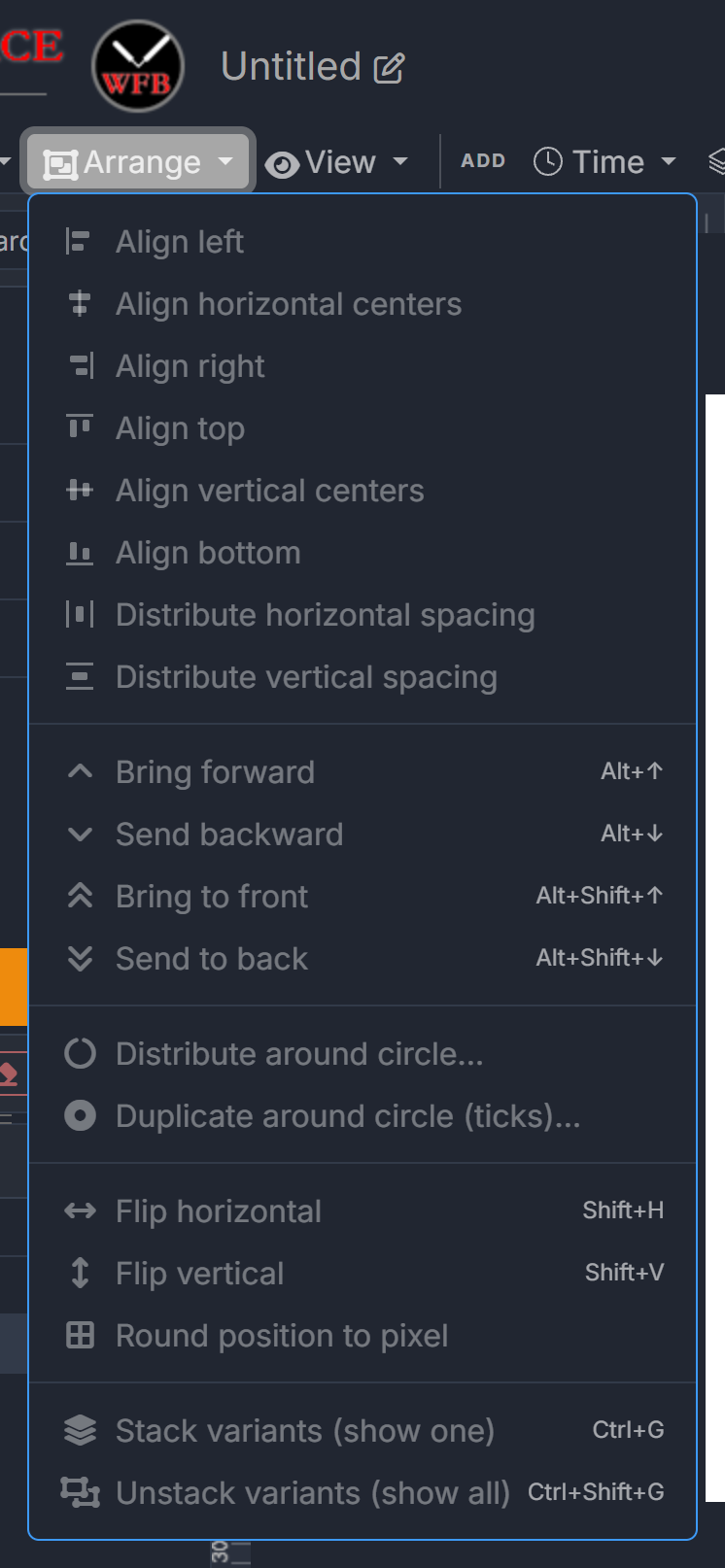 The Arrange menu: align, distribute, layer order, circular layouts, flips and variant stacks.
Data Fields in the Editor
Data fields behave slightly differently from static shapes — by design:
- They cannot be scaled or rotated with the corner handles (their size comes from the font size in the properties panel). This also applies inside a multi-selection: if any member is a data field, the selection loses its resize/rotate handles and the same size / width / height buttons are disabled.
- They cannot be flipped — flip is for static shapes and images only.
- In the layer list and in the Browse all data fields catalog, a green certificate badge marks premium fields and the orange OWM logo marks fields that require an OpenWeatherMap API key.
- Use preview data values (View menu) to test your layout against extreme values — see the next section.
Variant Stacks (show one of several overlapping fields)
Many designs place several data fields on top of each other and use visibility expressions so only one renders at runtime (e.g. an app-property dropdown choosing which metric to show). In the editor that used to be a pile of overlapping objects. Select the overlapping fields and press Ctrl+G (Arrange → Stack variants):
- Only one variant shows at a time in the editor — click a hidden member’s eye or row in the layer list to switch which one.
- Members move together — drag, nudge or align one and the whole stack follows.
- Each stack gets a color chip and number in the layer list so different stacks are easy to tell apart.
Ctrl+Shift+Gunstacks (all members visible again). Stacks are an editor-only convenience — the objects stay individual top-level objects in the build, and your runtime visibility expressions are untouched.
Power Modes & Data Preview
- The View menu (or keys
1–4) previews which objects are visible in all objects / high power / low power–AOD / do-not-disturb modes, driven by each object’s visibility setting. A custom expression option previews exactly the objects whose visibility expression matches what you type. - Preview data values switches every data field between live random samples, maximum/longest and minimum/shortest values — the fastest way to check that your layout survives
88888steps or a-88°temperature. Preview-only; nothing is saved. - The footer’s watch overlay draws the physical watch body around the screen, and clip preview crops the canvas to the real screen shape so you see exactly what a round bezel will cut off.
- On supported AMOLED devices, File → Estimate AOD pixels checks your low-power layout against Garmin’s always-on pixel budget (see MIP Display Issues).
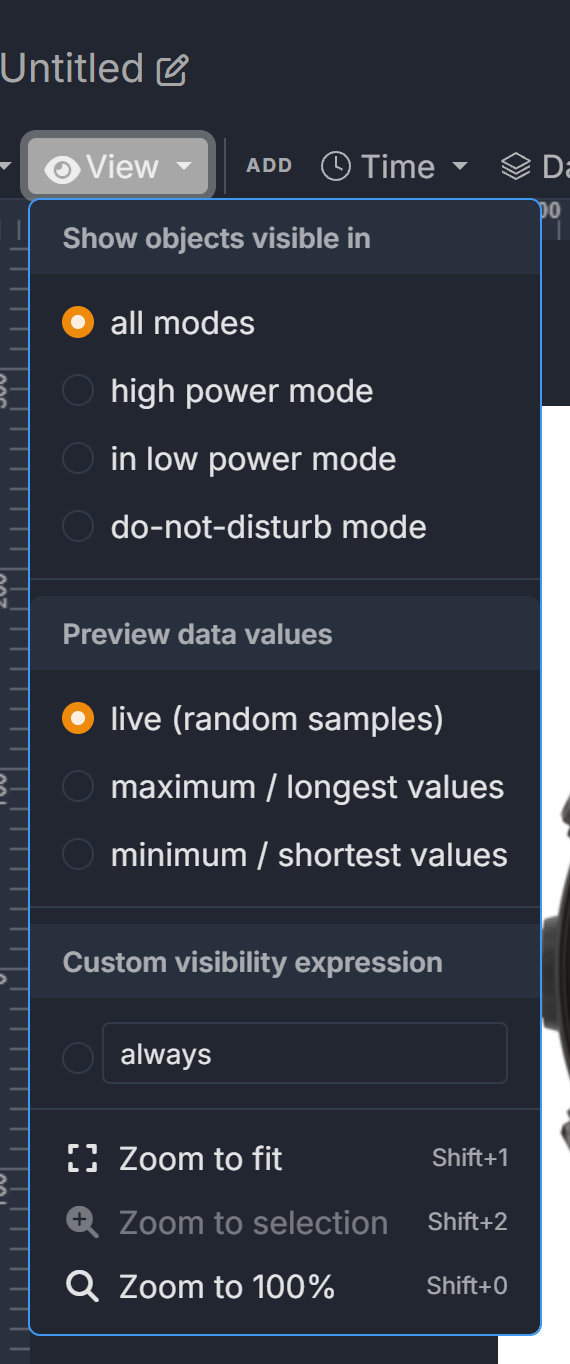 The View menu: power-mode filter, preview data values, custom expression preview, zoom presets.
History & Clipboard
- Undo/redo (
Ctrl+Z/Ctrl+Shift+Z, up to 50 steps) with named entries in the History panel below the layer list — click any entry to jump back. Multi-step operations (align, radial layout, stacking) undo as a single step, and typing in the properties panel coalesces into one entry instead of fifty. - Premium: the Timeline in the same panel stores a version every time you build, so you can restore an earlier built state.
Ctrl+C/Ctrl+Vcopies objects across browser tabs and designs; paste lands at your cursor when it’s over the canvas, offset-cascades when it isn’t.Ctrl+Dduplicates in place; Alt+drag clones while dragging.
Working on Mobile
On a phone or narrow window the side panels collapse: the two buttons at the right end of the toolbar toggle the layer list and the properties panel, and tapping the canvas closes whichever panel is open so the design is never trapped behind UI.
Installing Watch Faces on Your Garmin Device
This is one of the most frequently asked questions in the community. The recommended path is the dedicated wfbInstaller desktop app — it works the same on Windows, Linux, and macOS, handles the file-system layout for you, and removes the need to mount the watch as a drive (which is especially useful on modern macOS, where Android File Transfer is no longer available). Manual USB sideloading and ConnectIQ-store publishing are covered below as alternatives.
Method 1: wfbInstaller (Recommended)
wfbInstaller is the open-source companion app maintained at github.com/joshuahxh/wfbInstaller. It is the default way to put a WFB watch face on your device.
- Grab the binary for your OS from the latest release:
- Windows (64-bit):
wfbinstaller-windows-x64.exe - Linux (x86_64):
wfbinstaller-linux-x64 - macOS (Apple Silicon):
wfbinstaller-macos-arm64 - macOS (Intel):
wfbinstaller-macos-x64
- Windows (64-bit):
- On Linux/macOS, mark it executable:
chmod +x wfbinstaller-*(Windows users can just double-click the.exe). - Connect your Garmin watch via USB.
- Run the app. When it prompts for input you can:
- Paste a WFB watch-face URL (e.g.
https://garmin.watchfacebuilder.com/watchface/12345/) — the app downloads, unzips, and installs in one step, or - Provide the path to a
.zip,.prg, or.setfile you already downloaded.
- Paste a WFB watch-face URL (e.g.
- Press Enter. The app finds the connected Garmin device, copies the
.prg(or.set) into the correct directory (GARMIN/Apps/…), and reports success.
No Python or extra dependencies are required — the binaries are self-contained.
Method 2: Direct USB Sideloading (Manual)
If you prefer a fully manual install, or your environment can’t run the wfbInstaller binary:
- Connect your Garmin watch to your computer via USB cable.
- Your watch should appear as a removable drive (Mass Storage mode) or as a Portable Device in This PC (MTP mode). On Windows, modern devices like the fenix 6/7/8 default to MTP and have no drive letter — open them by double-clicking the device under This PC and you’ll see a storage folder containing GARMIN. (
wfbInstallerhandles both modes automatically, see Method 1.) - Navigate to the
GARMIN/Appsfolder on the watch. - Copy the downloaded
.prgfile into that folder. - Safely disconnect the watch.
- On the watch, long-press the middle-left button, go to Watch Face, and scroll to find your new face.
Important notes:
- After a recent Garmin firmware update,
.prgfiles only work on the specific device model they were built for. Always select the correct device in the Builder. - ⚠️ “.PRG file disappeared” — this is the #1 most common question. After disconnecting,
.prgfiles will vanish from theGARMIN/Appsfolder when you reconnect via USB. This is completely normal. Garmin’s firmware moves them internally after installation. Your watch face is still installed — long-press the menu button, go to Watch Face, and scroll through to find it. Do not keep re-copying the file thinking it failed.
Method 3: ConnectIQ Store (Premium)
- Export your watch face to a
.iqfile (requires premium membership). - Go to apps.garmin.com/developer/dashboard and create a developer account.
- Upload the
.iqfile and submit it as a beta or publish it publicly. - Install from the ConnectIQ store on your phone or computer.
This is the best method if your watch face uses App Properties (user-configurable settings), since sideloaded apps cannot display on-device settings menus.
Method 4: Mac Users
Modern macOS no longer mounts Garmin watches as a normal drive, and Google’s Android File Transfer utility — long the standard workaround — has been discontinued and is no longer available for download. The current recommendations:
- Use
wfbInstaller(Method 1) — this is the recommended Mac flow. It bypasses the “watch doesn’t appear as a drive” problem because it talks to the device directly. Usewfbinstaller-macos-arm64on Apple Silicon orwfbinstaller-macos-x64on Intel Macs. - OpenMTP — A free, open-source MTP file transfer app for Mac that also works with Garmin devices, if you need filesystem-level access. OpenMTP has known issues with updating watch faces: if you send an updated
.prgto a watch that already has the face installed, the update may not take effect. Workaround: delete the existing face from the watch first, disconnect, then reconnect and transfer the new file. - MacDroid — Another Mac file transfer app that supports MTP connections to Garmin watches. Some users report more reliable transfers than OpenMTP.
- Garmin Express — Garmin’s own desktop app can manage files on some models.
- ConnectIQ export (premium) — Avoids USB transfer entirely by publishing through the Garmin store; useful when a Mac just refuses to talk to the watch.
- USB cable check — Make sure your cable supports data transfer (not charge-only). A surprising number of “my Mac doesn’t see the watch” reports turn out to be charge-only cables.
Important for Mac users (manual install only): Only copy the .prg file into GARMIN/Apps. Do not put the .zip file in the Apps folder — the watch cannot read zip archives. Unzip first, then transfer only the .prg file. (wfbInstaller handles this for you automatically.)
How to Delete Watch Faces
- From the watch: Long-press the menu button → Watch Face → scroll to the face → select Remove.
- From Garmin Express: Open Garmin Express on your PC, go to Apps, scroll to watch faces, and delete from there.
API Keys & Weather Data
What Is the WFB API Key?
The WFB API key enables weather and location-based features on your watch face (city name, temperature, forecasts, sunrise/sunset, moon data, etc.). Without it, these fields display “Missing API key.”
How to Set Up Your API Key
- Log in to your WFB account.
- Go to My Account → Profile.
- Find your API key (or generate one).
- Go to the “Send API Key” page on the website.
- Follow the instructions to push the key to your Garmin device.
WFB API Key vs. OpenWeatherMap (OWM) API Key
WFB supports two weather sources: the built-in WFB weather service (using the WFB API key) and OpenWeatherMap (OWM). These are separate keys:
- WFB API Key — Built into your WFB account. Provides weather, location, city name, sunrise/sunset, and moon data. Sent to the watch via the “Send API Key” page.
- OWM API Key — A third-party API key from openweathermap.org. Some watch face designs allow users to choose between Garmin weather and OWM weather via an app property.
Known issue: If a watch face includes OWM weather fields (even if the user selects Garmin weather via an app property), the app may still require an OWM API key. There is currently no way to make OWM fields fully optional at runtime — if the design references OWM tokens, the key is needed. Designers who want to offer both options may need to publish two separate versions of the watch face.
Setting Up the OWM API Key (PIN Workflow)
When a sideloaded watch face needs an OWM key but doesn’t have one yet, it boots into a special PIN screen on the watch instead of the normal watch face. The flow is:
- On the watch, the face displays a 4-digit PIN plus two status lines underneath. Both lines must say “Yes” — they confirm the watch has a GPS fix and an internet connection. The PIN rotates every 5 minutes, so don’t dawdle.
- On your computer, open garmin.watchfacebuilder.com/send-api-key-to-device/ (also linked as “Send API Key” in the WFB site menu).
- Select “Open Weather Map”, enter the PIN currently shown on the watch, paste your 32-character OWM key from openweathermap.org, and click Submit.
- Wait. It takes about 5 minutes for the key to land on the device, and another 5 minutes before live weather data appears.
If your OWM-using face never leaves the PIN screen, add a “Debug Output” field to your design and rebuild — it shows one of these error strings while the face is running:
| Debug message | Meaning |
|---|---|
| (blank) | Everything fine — GPS, key, and quota all valid |
no gps |
The watch can’t get a current location. Start an outdoor activity to force a GPS lock, then go back to the watch face. |
invalid key |
The OWM key you sent has a typo or has been deactivated. Re-check on openweathermap.org and resend via the PIN page. |
no data |
OneCall returned no data for your key + location. Rare and usually resolves itself within 30 minutes. |
over quota |
You hit the OWM free-tier limit: 1,000 calls/day, 60 calls/min. Wait, or upgrade your OWM plan. |
Setting File Generator (Pre-Loading the OWM Key)
If the PIN workflow above is awkward (e.g. setting up faces in bulk, or for someone else’s device), you can pre-bake the OWM key into a .SET file that just gets dropped onto the watch:
- Go to Create Setting File for Garmin App on the WFB site.
- Fill in the form (enter your OWM API key; optionally enter the app ID of a specific design).
- Click Submit — you get a
.SETfile back. - Copy the file to
GARMIN/APPS/SETTINGS/on the watch.
If you provided an app ID, the file is named <appid>.SET and pre-pairs with that specific watch face. If you didn’t, you get a generic name — copy and rename to match each app ID you want to use it with. One generated file can be reused across any number of GWF apps as long as it’s renamed appropriately.
wfbInstaller (Method 1 in the install section) also handles .SET files automatically — drop one in and it places the file in the right directory.
Common API Key Issues
- “Missing API Key” on watch — You need to send the API key to your watch via the Send API Key page. This is a separate step after building your watch face. Do not paste the key into the “download instructions” field — use the dedicated Send API Key page on the website.
- “Invalid API Key” — Regenerate your key in your profile and re-send it to the device.
- API key not working after Garmin update — A Garmin firmware change removed the ability to sideload settings for some models. Publishing to ConnectIQ (premium) resolves this, as users can enter the key through the ConnectIQ app settings.
- OWM API key confusion — If you’re using OpenWeatherMap, you need a separate OWM API key from openweathermap.org. The WFB API key and the OWM API key are different things.
- GWF settings file generator — Some users try using the GWF settings file generator as an alternative to the Send API Key page. If this doesn’t work, use the standard Send API Key method from the WFB website.
- Weather data showing incorrectly — Weather fields rely on the phone’s Garmin Connect app being connected and synced. If Garmin’s weather service is temporarily down, WFB weather fields will also be unavailable.
Tokens & Data Fields
WFB provides 679+ data tokens that you can use to display dynamic information. Browse the full list at garmin.watchfacebuilder.com/tokens.
Common Token Categories
| Category | Prefix | Examples |
|---|---|---|
| Activity History | ah |
Daily steps chart (ah7), calories (ah2), active minutes (ah1) |
| Activity Info | ai |
Active minutes today (ai1), weekly goals (ai3) |
| Heart Rate | hr |
Current HR, resting HR, HR zones |
| Weather | w |
Temperature, conditions, forecasts, wind |
| System | sys |
Battery level, Bluetooth status, notifications |
| Time/Date | t, d |
Hours, minutes, seconds, day, month, year |
| GPS/Location | gps |
Latitude, longitude, altitude |
| Sun/Moon | sm |
Sunrise, sunset, moonrise, moonset, moon phase |
| Body Battery | bb |
Current body battery, charged/drained values |
Using Tokens in Data Fields
- Add a data field object to your canvas.
- Select the token from the dropdown, or type the token code directly.
- Use the format option on data fields to control how values are displayed (e.g., formatting timestamps for sunrise/sunset times).
Token Tips
- Use
isnullto check if a data field has a value. For example:isnull((cp23),"--")displays “–” when stress data is unavailable. - For group icons with color-coded ranges, use
isnullto set a fallback value:isnull((cp23),999)where 999 maps to a “no data” color (e.g., grey for off-wrist). now.value()-(sm.mn0).value()returns total seconds since midnight — useful for time-based calculations.- The
(ds1.1)token can be used to detect device settings like measurement units. - Weekly calorie totals — The
(ah2.t)token represents total calories for the activity history period. Place it directly in a Data Field; no specialsum()function is needed. For an Arc Goal, use(ah2.t)as the data source and set your target manually. - PulseOx quirk — Unlike heart rate, PulseOx
(cp35)may never return null even when the watch is off-wrist. To detect off-wrist state for PulseOx displays, check heart rate instead:(cp18)==null?999:(cp35). - Dive data — Dive-specific fields (no-fly time, surface time, dive statistics) are not currently available as tokens. WFB is focused on general watch face data, not dive computer data fields.
- Calories not showing — If calorie tokens display zero or blank, ensure your Garmin device is synced and that the activity tracking is enabled in the Garmin Connect app.
- Moon phase inaccuracy — Some users have reported that the moon phase icon or data does not match the actual moon phase. Moon data relies on the WFB API and your device’s location/time being correct. Ensure the API key is set up, the phone is synced, and the watch has accurate time and location data. Minor discrepancies (off by a day) can occur depending on when the data was last refreshed.
- Weather forecast (multi-day) — Displaying a multi-day weather forecast (e.g., 3-day or 5-day forecast) requires using the forecast-specific weather tokens. Each forecast day has its own set of tokens for temperature, conditions, etc. If forecast data appears blank or outdated, it may be because the Garmin Connect app hasn’t synced recently or the WFB API key isn’t configured. Note that forecast accuracy depends on the underlying weather service (WFB or OWM).
Useful Time, Timezone, and System Tokens
Some specific tokens that come up a lot in r/watchfacebuilder threads:
| Token | What it returns |
|---|---|
(tm5) |
Day of week as a number (1–7) — useful as the data field for a (icn.tm5) day-of-week icon with min=1, max=7. |
(tm15) |
A localMoment object — use inside math expressions for date/time math. |
(tm16) |
A localMoment object for current time (use inside expression only — has no direct display value). |
(tm16.1) |
Daylight-saving-time offset in seconds (0 if DST is not active). |
(tm16.2) |
Total timezone offset (timezone offset + DST offset). |
(tm16.3) |
Timezone offset without DST. |
(tm16.4) |
true if DST is currently active, false otherwise. |
(ds29) |
1 if the watch is currently in its scheduled Sleep / DND period, 0 otherwise. Set the schedule on the watch: hold MENU → System → Sleep Mode → Schedule, pick days and hours. Useful for visibility expressions that dim/hide elements while sleeping. |
(ds3) |
Battery level (percentage). |
(ds3.4) |
Battery level at the time of last sample (used for drain-rate math, see Battery section). |
(ds3.5) |
Moment of the previous battery sample. |
(ds9) |
Heart rate from sensor history. |
(icn.tm5) |
Day-of-week icon helper — see (tm5) above. |
(gvar_N) |
A program variable (Nth global variable). Useful for toggle/state patterns triggered by press-and-hold; combine with %2==0 to make a two-state toggle. |
Expressions, Visibility & Math
Visibility Expressions
You can show/hide objects based on conditions. This is one of the most powerful features of WFB.
Important limitation: Text objects only support high/low power mode as visibility expressions. For conditional text, use custom bitmap fonts with math objects instead.
Common examples:
- Battery warning icon visible only when battery ≤ 5%:
(icn7)<=5 - Show different content based on device settings:
(ds1.1) == 1 - DND/sleep mode detection: Use
(sm5.1) == "Dusk"or similar tokens
Common pitfalls:
- The
!=(not equal) operator may not work as expected in some contexts. Try using!((expression).equal("value"))instead. - When using
(prop.text_1).equal("xxxx")for app property visibility, note that complex expressions can cause compilation errors. - Overlapping touch responses — This is a frequently reported issue. When multiple data fields with touch responses (press & hold shortcuts) are stacked on top of each other, the touch event may trigger the wrong app or shortcut. The topmost layer captures the touch, even if visibility expressions hide it. Workaround: avoid overlapping touch-responsive fields, or use a single transparent circle/shape on top as the sole touch target, linked to a
(prop.a1)complication property. - Combining touch response with
prop.selectitems — If you have menu items controlled by(prop.select_4)==0through(prop.select_4)==19and want to add a touch response, creating a separate complication property(prop.a1)will result in two separate items appearing in the ConnectIQ settings menu. Currently, there is no built-in way to merge a select property and a complication touch target into a single menu item.
Math Expressions
Use math expressions to transform data values:
- Unit conversion: Convert km/m to miles/ft, Celsius to Fahrenheit, etc. using math expressions.
- Time calculations: Calculate time differences, seconds since midnight, countdowns.
- Conditional display: Combine
isnullchecks with math to handle missing data gracefully.
Example from the official help guide: (ds9) - 10 returns the heart rate value from sensor history minus 10. Any data token can be combined with arithmetic operators (+, -, *, /), conditional logic (?:), comparison operators, and the isnull() function described in the Tokens section.
Expression Syntax Tips
- Expression checker — The Builder has an inline expression checker in the expression editor window. It catches most obvious syntax errors before you upload your design to compile. Always resolve red error markers first; don’t waste a server round-trip on a typo.
- Color expressions — To make a color change at runtime, check the checkbox in front of the color input box, then enter an expression. Range patterns use chained ternaries, e.g.:
(ds3)>80?0x00ff00:(ds3)>60?0x00aa00:(ds3)>40?0xaaaa00:0xff0000Replace the hex values with whatever colors you want at each threshold.
- Operator precedence —
&&(AND) binds tighter than||(OR), so use parentheses when mixing them:((ds1.1)==1 && (icn11)==0) || ((ds1.1)==1 && (icn11)==1) - Float vs integer math — Use
3600.0(with the decimal), not3600, when dividing to convert seconds to hours. Integer division will silently round. - String comparisons — Prefer
.equal("value")over==for strings. The!=operator is unreliable in some contexts; use!((expression).equal("value"))for “not equal”. - Power-mode dropdown on visibility — Each object’s visibility setting has a power-mode dropdown: All (always rendered in the editor preview), High (only when previewing high-power mode), and Low (only when previewing low-power mode). This is an editor convenience and doesn’t replace the runtime visibility expression — both apply.
Custom Code Data Fields
For things WFB tokens can’t express, you can drop a small Monkey C snippet into a Custom Code data field. The expression must end with a return statement that produces the value the field should display.
Two community-confirmed examples:
Show the alarm count (or nothing if zero):
var mySettings = Toybox.System.getDeviceSettings();
return mySettings.alarmCount > 0 ? mySettings.alarmCount : null;
Show the notification count:
var mySettings = Toybox.System.getDeviceSettings();
return mySettings.notificationCount;
Use null as a return value to make the field empty (and trigger any isnull() fallbacks). Note that Custom Code fields can’t reference WFB tokens directly — they have access to Garmin’s Monkey C / Toybox APIs, not WFB’s expression engine.
Custom Fonts & Bitmap Fonts (BMF)
Why Use Custom Bitmap Fonts?
- Standard fonts may not look sharp on low-resolution displays (especially Instinct series at 176 × 176).
- Custom BMFs allow pixel-perfect rendering.
- BMFs can include custom icons and symbols as “characters.”
- They enable conditional text display (since text objects have limited visibility support).
Creating Bitmap Fonts
- Use the BMF for Garmin tool (v2.1.1) on the WFB website.
- Design each character at the exact pixel size you need.
- After generating, click Edit on each character row to adjust X offset and Y advance values.
- Make sure glyphs stay inside the red bounding box (italic fonts often get cut off if they extend outside it).
Font Troubleshooting
- Square blocks appearing — This happens when a character is not supported by the font being used. For example, a dash, space, or comma may be missing from your custom font.
- Blurry text on MIP displays (Instinct, Forerunner 955) — Use bitmap fonts instead of vector fonts. Anti-aliasing cannot be disabled for vector fonts, causing a dithered/blurry look on MIP screens.
- Font size mismatch after generating — When creating BMF fonts, the generated size may be smaller than what you specified. For example, setting size 80 may produce a font at size 62, and size 100 may produce size 79. This is because the BMF tool adjusts for the actual glyph bounding boxes. You may need to set a larger size than intended and fine-tune by trial and error.
- Icons shrinking when editing — A known issue where shapes/icons resize unexpectedly. Save frequently and check dimensions after edits.
- Finding fonts by name — If you’re looking for a specific font, browse the BMF tool’s font list or check the WFB community for shared custom fonts. The font name displayed in the editor may differ from the system font name.
Images, Icons & Animations
Using Images
- Upload PNG images to use as backgrounds, icons, or decorative elements.
- Check “Layer Object” to allow an image to appear on top of other objects.
- Image quality can degrade on lower-resolution devices — design at the exact target resolution.
Animated GIFs and Animation Layers
- WFB supports animated GIFs on compatible devices with AMOLED displays.
- The Animation Layer feature (added in v7.3.4) accepts both animated GIF files and video files as the source. GIF is the format reserved for animation; any other image type is treated as a static image.
- GIFs stop animating when the display enters low-power mode. This is a Garmin limitation, not a WFB issue.
- Using stacks with GIFs — the image will appear frozen in low-power mode.
Gradient Images
You can use gradient images behind objects for visual effects. Set the foreground object’s color to transparent to let the gradient show through.
Known issue: Gradient images may display correctly in the WFB editor but appear on top of other objects on the actual watch, making those objects invisible or hidden behind the gradient. Even if the layer order looks correct in the editor, the watch may render them differently. Workarounds include: ensuring “Layer Object” is checked on the correct items, rearranging the layer order in the panel, and testing on the actual device (not just the editor preview).
Weather Icons
WFB includes built-in weather condition icons. Common questions:
- Icon too faint/thin — The default weather icon stroke width cannot be adjusted directly. As a workaround, you can use custom icon images instead of the built-in ones, or place a colored background behind the icon to increase contrast.
- Changing icon color — Weather icon colors can be changed in the object properties. If the icon is hard to see, try setting a contrasting background color or using a white/light-colored icon on a dark face.
- Stock icons vs custom (SVG/image) icons — Stock icons don’t accept a color expression — their color cannot change at runtime — but they are much more battery-efficient. Custom icons (an image or an SVG path) can take expressions for stroke and fill color, but cost more CPU. Pick stock when you don’t need runtime recoloring; pick custom when you do. Note: an SVG image (the whole rendered file) can’t be recolored at runtime, but an SVG path object exposes stroke and fill color settings that accept expressions.
- Stock watch-overlay transparency — The watch-overlay images shipped with the Garmin SDK are not transparent. If you want a transparent overlay, export the PNG and edit the alpha channel in an external image editor (Photoshop, GIMP, etc.). The dev’s previous transparency patches have been overwritten by SDK updates, so the non-transparent stock overlays are the current state.
App Properties & Custom User Settings
App Properties are user-configurable settings that appear in the Garmin Connect IQ app on the user’s phone. They allow each user to personalize a watch face without editing the design itself.
Types of App Properties
- Select/Dropdown — Let users choose from a list of options (e.g., data field to display, color theme, weather source).
- Number — Let users enter a numeric value (e.g., GMT offset for a second timezone, calorie goal).
- Text — Let users enter custom text (e.g., their name, a custom label). This is how you create a “custom text input field” — add a text-type app property and display it using the corresponding
(prop.text_X)token. - Boolean — A toggle on/off (e.g., show/hide an element).
- Complication — Special properties like
(prop.a1)that link to touch-response shortcuts, allowing users to choose which app opens when they tap an area.
Important Notes on App Properties
- App Properties only work when published to ConnectIQ (premium required). Sideloaded
.prgfiles cannot display on-device settings menus. This is the #1 reason to consider premium if your design uses user-configurable options. The dev has stated they’re working on a way to support app-property reads from sideloaded apps too (v8.3.0 announcement), but as of the latest build only ConnectIQ-published designs read app properties at runtime. - Naming and referencing properties — Since v8.3.0, you can create app properties under the Global section and reference them anywhere with the syntax
(prop.<property_name>). The older positional names (prop.text_1,prop.select_4, etc.) still work for backward compatibility. - To create a custom text field that displays a user’s name: add a text-type app property, then place a text or data field on the canvas using the
(prop.text_1)token (or(prop.<your_name>)for a named property). - Use
(prop.select_X)==Nin visibility expressions to show/hide objects based on the user’s dropdown selection.
Visibility Tied to App Properties — Example
A common pattern for a “user picks how seconds are displayed” setting: add a Select app property with three options (Always / High-power only / Off), then on the seconds field set its visibility expression to:
(prop.select_1)==0                  // Always shown
(prop.select_1)==1 && (ds1.1)==1    // Visible only in high-power mode
(prop.select_1)==10                 // Effectively disabled — a value the dropdown never takes
The third line is the trick for “hide entirely”: pick a value the dropdown never produces.
Language & Localization
WFB supports multiple languages for day names, month names, and other localized text.
How Language Tokens Work
WFB uses language tokens for day and month names. These tokens automatically display in the device’s system language — if the watch face includes the correct localized strings.
| Token | Meaning | Example (English) | Example (Czech) |
|---|---|---|---|
wk1–wk7 |
Short day names (Sun–Sat) | Sun, Mon, Tue… | Ned, Pon, Úte… |
wkf1–wkf7 |
Full day names | Sunday, Monday… | Neděle, Pondělí… |
mo1–mo12 |
Short month names | Jan, Feb, Mar… | Led, Úno, Bře… |
mof1–mof12 |
Full month names | January, February… | Leden, Únor, Březen… |
Capitalizing Day/Month Names
A common question: “How do I capitalize weekday text (e.g., MON, TUE, WED)?” — Currently, text token output follows the format defined in the language strings. If the localization provides “Mon” but you want “MON”, you may need to define the strings as uppercase in the language settings, or use a bitmap font approach where uppercase and lowercase are mapped to your preferred display format.
Adding or Fixing Language Support
- The developer (u/joshuahxh-1) can add or correct language translations. If your language has incorrect or missing translations, post a request on r/watchfacebuilder with the full list of corrected strings (using the
wk,wkf,mo,moftoken format shown above). - Restoring factory language settings — If an older watch face was created before your language was supported, you may need to request that the developer add a “factory language reset” feature or re-export the face with updated language strings.
- Language updates to existing watch faces require a new build and re-upload to ConnectIQ.
Battery Life Optimization
Battery life is a major concern for Garmin users. Watch face complexity directly impacts battery drain. Note that Garmin’s built-in watch faces are written natively without the SDK, so third-party watch faces (including WFB-generated ones) will always use slightly more battery than native faces.
How Screen Updates Work
During high-power mode the screen updates every second; in low-power mode it updates every minute. Each update involves three steps: (1) computing data values from sensors, (2) drawing objects to the screen buffer, and (3) physically updating pixels. On MIP screens, step 3 only uses battery when a pixel actually changes value. On AMOLED screens (Epix, Venu), step 3 uses battery whenever a pixel is lit. This is why dark backgrounds save more battery on AMOLED.
Same data fields are not calculated multiple times, but formatting the same value differently and outputting it to multiple locations will consume more battery.
Draw Order (Bottom Up)
Per the dev: each screen update first clears the screen with the global background color, then draws the merged static-object background image in one shot, then draws each dynamic object or code block one by one from bottom to top in the layer panel. After all on-screen drawing finishes, the app checks whether it needs new internet data (OWM weather, WFB API, tides, etc.) and only then fires off the background HTTP request — gated by the Communication interval setting. Knowing this is helpful when you want to figure out why one object is appearing on top of another: it’s the order in the layer panel, not the order in which you added them.
Update Intervals
Many objects have an Update interval setting. The global update interval defines how often the screen refreshes (default is 1 second in high-power mode). Increasing this can dramatically reduce battery drain:
- Setting the global update interval to 15 seconds reduced HighPower Time from 47,485 μs to 36 μs in simulator testing.
- However, a higher interval affects everything — including how often the clock seconds update, notification icons refresh, etc.
- Individual objects can override the global interval with their own custom interval.
The Communication interval controls how often the watch communicates with the internet (via phone or Wi-Fi). This only applies when using data fields that require internet data (OWM weather, WFB API, Dexcom, auth). OWM data updates every 30 minutes (5 minutes if you’ve moved more than 1 km). Increase this interval if you don’t need frequent weather updates.
Static vs. Dynamic Objects
All static objects are merged into one background image and drawn at the start of each update. If you have many small static objects scattered across the screen, the merged image becomes large and takes longer to load. Counterintuitively, converting static objects to dynamic objects can save battery in this case, because dynamic objects are drawn individually and may be more efficient when spread across the screen. Use the Visibility setting to hide objects that aren’t needed — hidden objects now save battery (this was improved in a recent WFB update).
Curved Text and Arcs
Curved text can have a major impact on memory consumption and file size. For example, an IQ file can jump from 4 MB to 9 MB with unoptimized curved text. To optimize: add a custom font containing only the characters you need, and consider using custom images instead of arc/circle objects when possible.
Tips to Minimize Battery Impact
- Reduce the number of data fields — Each active data field uses processing power.
- Avoid per-second updates — Showing seconds (especially on MIP displays) significantly increases battery drain. Use per-minute updates where possible. Consider increasing the global update interval.
- Use sensor history data instead of live sensor data when possible — live data consumes more battery.
- Limit weather/API calls — Increase the communication interval if you don’t need frequent updates.
- Use simpler graphics — Fewer images and animations = less battery usage.
- Minimize use of always-on elements — Use high/low power mode visibility to hide non-essential elements when the screen is dimmed.
- Overlapping objects are generally fine — having layered objects on top of each other shouldn’t significantly impact battery.
- Test on your actual device — Battery impact varies significantly between AMOLED (Epix, Venu) and MIP (Forerunner, Instinct, Fenix) displays. Simulator results are indicative but not exact.
Calculating Battery Drain Rate
You can display a live battery drain rate on your watch face using a math expression:
((ds3.4)-(ds3)).toFloat()/(now.value()-(ds3.5).value())*300
Use format -%.4f% to show up to 4 decimal places. This shows battery drain for the last 5 minutes (replace *300 with a different multiplier for other time windows). Note: it may require at least 1% charge and some time before values appear.
Memory Optimization
Memory limits vary by Garmin device and can cause “Out of Memory” (OOM) crashes if exceeded. OOM errors are most commonly caused by images or static objects.
Finding Your Device’s Memory Limit
To check how much memory your watch allows for watch faces:
- Visit the Garmin developer device reference.
- Click your watch name → App Types → Memory Limit → “Watch Face.”
- The size is listed in bytes — divide by 1024 for KB.
Debugging OOM Issues
- Add two “free memory” data fields to your watch face: one in front of your image/object layer and one after it. The difference shows how much memory that layer consumes.
- Check crash logs on the watch at
/GARMIN/APPS/LOGS/CIQ_LOG.YMLfor detailed error info. - Remove images one by one to isolate the culprit — images and static objects are the most common cause of OOM.
How Image Memory Works
When drawing an image, the system loads it from storage into memory, draws it, then releases the memory before handling the next object. The bigger the image (width × height), the more memory is needed during this loading phase — even temporarily. This means a single large background image can spike memory usage even if the final drawn result is efficient.
Hard Limits (Garmin SDK / Monkey C)
These are platform-imposed and not something WFB itself can lift:
- 256 images per app — Hard cap from the Garmin SDK. Each regular rotating data field in WFB pre-renders 60 images (one per 6° step), so each rotating goal field eats 60 image slots. You cannot have more than 4 such rotating fields in a single design before you blow the cap. Workaround: use the Rotating Simple Hand object (under the Goal menu — labeled “Rotating Simple Hand”). It renders the hand from an SVG path dynamically at runtime, so it counts as 0 toward the 256-image budget. You can pick a predefined shape or paste a custom SVG path string; set stroke width, stroke/fill colors, the rotation angle range (360 for a full circle), and a center offset. Keep the shape simple — every extra path segment costs CPU on every rotation update.
- 256 local variables per Monkey C function — Each object on the canvas uses at least one local variable, and objects with visibility expressions use several more. Even when two objects have the same visibility expression, the local variables for that evaluation are not shared. Symptom: a stack-overflow or compile error when a design accumulates dozens of similar objects. Workaround: simplify or consolidate visibility expressions; reuse a single bitmap-font glyph instead of many similar text/data fields where possible.
Memory Optimization Tips
- Static objects are merged into one background image at compile time. If that merged image is very large, it takes more memory to load but uses less battery. Converting some static objects to layer (dynamic) objects can reduce peak memory usage at the cost of slightly more battery.
- Use math expressions for static text instead of text objects — text objects consume more memory.
- Use SVG for clock hands. Each non-SVG hand generates 60 separate images (one per position), which consumes significant memory and increases file size. SVG hands are rendered dynamically and are far more memory-efficient.
- Curved text can dramatically increase memory usage and file size. Use a custom font with only the characters you need, or replace curved text with a pre-rendered image.
- Reduce image dimensions — resize images to the exact pixel size needed rather than scaling down large images on the watch.
- Data fields usually don’t take much memory unless they include charts. The biggest memory consumers are typically static objects like background images, horizon lines, and icons.
Publishing to Garmin Connect IQ
Exporting to ConnectIQ (Premium Required)
- Build your watch face in the Builder.
- Click the Export to ConnectIQ option.
- This generates a
.iqfile instead of a.prgfile. - Go to apps.garmin.com/developer/dashboard.
- Create a developer account if you don’t have one.
- Upload the
.iqfile and configure your listing. - Submit as beta (for personal testing/sharing) or public (for the store).
Why Publish to ConnectIQ?
- App Properties work properly — Users can configure settings (colors, data fields, etc.) through the Garmin Connect app on their phone.
- Easier installation — Users install directly from the store, no USB cable needed.
- Updates — You can push updates to users who installed your face.
- Wider audience — Share your designs with the Garmin community.
Multi-Design Export to a Single IQ File
If you maintain several variations of a watch face for different Garmin models, you can merge them into a single .iq file instead of submitting each one separately (dev announcement):
- Open the Export link in the left-side menu on the WFB site.
- Select multiple designs at once (more designs = longer compile time).
- WFB lists every device each design can target. If two designs both target the same device, pick which one wins for that device. Uncheck any device you don’t want to ship.
- Click Merge — WFB compiles all selections into one
.iqfile. - Upload that single
.iqto the Garmin developer dashboard.
This is the recommended way to ship one store listing that covers, say, Fenix + Forerunner + Epix variants of the same design.
Versioning Tips
During frequent beta testing, consider using a simple incrementing version number (1, 2, 3, …) rather than semantic versioning (1.0.1, 1.0.2). It’s quicker and avoids confusion during rapid iteration. You can switch to a proper versioning scheme for public releases.
EEA Region Requirements
If you want to release your watch face in the EEA region (European Economic Area — several countries in Europe and Asia), you must apply for developer request verification and ensure your app description lists all permissions your watch face uses. You can see the required permissions in the ConnectIQ store listing or within the app itself.
Common ConnectIQ Issues
- Export stuck/hanging — If the export process seems stuck for hours, try rebuilding and re-exporting. Check your internet connection.
- Missing objects after export — Some elements present in the builder may not appear in the ConnectIQ version. Rebuild and verify all layers are included.
- Beta install via Developer Dashboard — Some users have reported difficulty installing beta watch faces since late 2025. If the dashboard doesn’t sync new devices, try using the Garmin Connect mobile app instead.
- Update not showing up — During beta testing, updates can take a long time to appear. On Android, force-closing the Connect IQ app and reopening it usually makes the update appear immediately. If that doesn’t work, try re-uploading the same version with an incremented version number.
- Wrong version number displayed — The Connect IQ app frequently shows the previous version number even after an update is applied. The watch will have the correct content — the app display fixes itself after some time (sometimes after a force close).
- Watch face crashes during testing — Reboot the watch during heavy testing phases, especially after installing broken or incomplete watch faces.
Premium Membership
What’s Included
- Ad-free experience in the Builder
- Export to ConnectIQ (
.iqfiles) - Automated testing in the Garmin Simulator
- Timeline — Every time you build, WFB automatically saves the current state, creating a version history you can roll back to
- Weather data via WFB API for premium members
How to Subscribe
- Log in and go to My Account → Profile.
- Scroll to the Membership section.
- Click Subscribe to access the subscription page.
- New subscribers get a 30-day free trial.
- Credit card payments are accepted. PayPal was previously supported but has been disabled for new premium subscriptions (dev announcement). If you already subscribed via PayPal, you keep premium access until the end of your current billing period and the subscription will not auto-renew.
“Can’t Save Without Premium” Confusion
Some users mistakenly believe they need premium to save or download their watch face. This is not the case. Saving your design and downloading the .prg file are both free features. What premium unlocks is the ability to export a .iq file for the ConnectIQ store, automated simulator testing, and an ad-free experience. If you’re having trouble saving or downloading, check that you’re logged in and look for the download button below the watch face preview after building.
Is Premium Worth It?
The free tier covers all core design and build features. Premium is particularly valuable if you:
- Want to publish to the ConnectIQ store
- Need app properties to work (user-configurable settings)
- Want to test in the Garmin simulator before installing
- Prefer an ad-free editing environment
Troubleshooting Common Errors
“IQ!” Error on Watch
This appears when a watch face crashes on the device. Common causes:
- Wrong device model — The
.prgfile was built for a different device than your watch. This is the most common cause. For example, a.prgbuilt for Fenix 7 will show “IQ!” on a Fenix 8. - A compile error exists in the design (check for conflicting expressions).
- Stack overflow — usually caused by overly complex visibility expressions.
- Corrupt
.prgfile — try regenerating and re-downloading.
Fix: Rebuild with the exact correct device selected. If you have a Fenix 8, select Fenix 8 specifically — don’t assume a different Fenix model will work. Simplify complex expressions if the error persists.
Compilation Errors
- “Compile errors for item on topmost layer” — Often caused by conflicting object configurations. Try reordering layers or removing and re-adding the problematic object.
- Errors with
(prop.text_1).equal()— Complex property expressions can cause compilation failures. Simplify or restructure your conditional logic.
Stack Overflow
If your watch face causes a stack overflow error, the most common cause is overly complex visibility expressions. For example, changing (ds1.1) == 1 to a more complex chain of conditions can exceed the device’s stack limit. Simplify your expressions or split them across multiple objects.
Watch Face Showing Up Blank After Installing
This is reported frequently, especially by Vivoactive 5 and Mac users:
- Transferred the
.zipinstead of the.prg— You must unzip the download first and copy only the.prgfile toGARMIN/Apps. The watch cannot read.zipfiles. - Wrong device model — If the
.prgwas built for a different device, the face may appear blank or show “IQ!”. - Mac transfer issues — If using OpenMTP or MacDroid, ensure the file transferred completely. Try deleting the existing face from the watch, disconnecting, reconnecting, and transferring again.
- Verify in the Builder — Open the design in WFB and use the preview/simulator to confirm it displays correctly before re-downloading.
Watch Face Not Displaying Properly
- Verify you selected the correct device model in the Builder.
- Check that all objects fit within the screen dimensions.
- Ensure fonts support all characters you’re trying to display (missing characters appear as square blocks).
“PRG File Disappeared”
After a Garmin firmware update, .prg files may appear to vanish from the GARMIN/Apps folder. The files are moved internally by the watch OS. Long-press the menu button, go to Watch Face, and scroll — your face should still be there.
Seconds Showing Square Blocks (MIP Displays)
On MIP displays (Forerunner 955, Instinct, Fenix), showing seconds may cause rendering issues. The per-second update can sometimes display a square block instead of the digit. Use bitmap fonts for more reliable second-by-second rendering on MIP screens.
Location Data Lost / Sunrise-Sunset Off
Some users report that location-based data (sunrise/sunset times) occasionally show incorrect values. This happens when the watch loses its GPS fix. Ensure your phone’s Garmin Connect app is synced and that the watch has had a recent GPS lock.
Known Limitations & Quirks
What WFB Can and Cannot Build
WFB is specifically a watch face builder. It does not currently support building other ConnectIQ app types such as data fields, widgets, glances, or full apps. This has been requested by the community but is not yet available. Community members have also requested features like HTTP/REST API calls from watch faces and on-watch keyboard entry fields — these are not currently possible due to ConnectIQ platform limitations.
Copy/Paste Between Watch Faces
Copying objects between two different watch face designs is supported: in the current editor, Ctrl+C / Ctrl+V works across browser tabs and across designs (objects travel via a portable clipboard format, and pasted objects get fresh internal IDs). The historical “copy works but paste says no object selected” bug applied to the legacy editor — if you still hit it, make sure both tabs run the new editor, or refresh both tabs.
PRG File Size Anomalies
Small changes to images can cause disproportionately large increases in .prg file size. For example, a background PNG that increases by only ~130 bytes can result in a .prg file that grows by ~20 KB. This is because WFB re-encodes images during the build process, and factors like image color depth, palette changes, and compression can amplify small source changes. If file size matters (some older devices have tight limits), experiment with different image optimizations before building.
Global Variables & Arrays
WFB supports global variables including arrays. You can define an array and use the current second (or other token) as an index to look up values — for example, positioning a dynamic image at different X coordinates each second. However, the syntax can be tricky and not all array operations work as expected. If a math expression referencing an array doesn’t work, try simplifying the expression or breaking it into multiple steps.
Timer Complication
Displaying a running timer countdown on the watch face (like a complication showing time remaining) is not currently supported in WFB. This is a frequently requested feature. While some stock Garmin watch faces now include timer complications, the ConnectIQ API access needed for this may not yet be available to WFB.
CIQ SDK Version for PRG Files
Some users have asked whether they can select which ConnectIQ SDK version is used when generating a .prg file. Currently, WFB uses a fixed SDK version for compilation. You cannot manually choose the SDK version. If your device requires a newer SDK (e.g., for newer Garmin models), WFB typically stays updated, but if you encounter compatibility issues with a very new device, check r/watchfacebuilder for announcements about SDK updates.
Updating a Running Watch Face
When you update a watch face design and re-download the .prg file, you need to transfer the new file to the watch to see the changes. However, there are known issues with this process:
- Via USB (Windows): Copy the new
.prgtoGARMIN/Apps, overwriting the old one. Disconnect and the watch should load the updated version. - Via OpenMTP (Mac): OpenMTP has a known issue where sending an updated
.prgto a watch that already has the face installed may not apply the update. You may need to: delete the existing watch face from the watch first, disconnect, reconnect, then transfer the new.prg. - Via ConnectIQ (Premium): Upload the new
.iqfile to the developer dashboard and push an update. Users who installed from the store will receive the update automatically.
Condition Text Returns Are Not Strings
Some users have encountered issues where the condition/text return value from an expression is treated as a non-string type, causing unexpected display behavior. If you’re using expressions to output text conditionally, ensure the return values are explicitly formatted as strings. Wrapping values in quotes within the expression or using string-specific tokens can help avoid type mismatch issues.
Features Only Available on ConnectIQ (Premium)
Some features require publishing to the ConnectIQ store (premium):
- App Properties (user settings on phone)
- API key configuration via ConnectIQ settings
- OTA updates for users who installed your face
- Wider device compatibility testing via simulator
Developer Roadmap
The dev maintains a public To-Do sticky on r/watchfacebuilder (thread). Items already shipped (struck through in the latest revision) include: group field, custom data field with formula, design-by-screen-size, Bft wind speed scale, UV-index scale, sun arc, animation layer, and ConnectIQ-store export. Items still on the list at last update:
- Other Connect IQ app types (data field, widget, full app, audio content provider)
- Rotating arbitrary widgets
- More internet data feeds (tide, Aurora forecast, calendar)
- DND mode as a first-class feature (today: use
(ds29)) - Thousand separator formatting
- Separate Save and Build buttons
- Pixel-percentage estimation for AOD
- “Time from last charging” data point
- Hide-completed-goal field option
- Custom drawing function
- Add expression fields to more property surfaces
If you have a feature request, the To-Do thread is where to put it — the dev triages from there.
MIP Display Issues
MIP (Memory-in-Pixel) displays — found on the Instinct series, Forerunner 255/955, and Fenix line — behave very differently from AMOLED screens. Several community-reported issues are specific to MIP devices.
Washed-Out or Grainy Graphics
Images that look crisp on AMOLED (Epix, Venu) can appear washed out, grainy, or dithered on MIP screens. This is because MIP displays have a limited color palette — the screen physically cannot render smooth gradients or anti-aliased edges the way AMOLED can. Workarounds include: designing images with flat/solid colors and high contrast, avoiding subtle gradients, using bitmap fonts instead of vector fonts, and testing on the actual MIP device rather than relying on the editor preview.
AOD (Always-On Display) Pixel Estimation
Some users have reported discrepancies with the estimated AOD (Always-On Display) pixel count shown in the builder versus the actual result on-device. The pixel budget is a Garmin-enforced limit that restricts how many pixels can be lit in always-on/low-power mode to save battery. If your design exceeds this limit, it may be automatically simplified or hidden in low-power mode. Reduce the number of visible elements in low-power mode and use high/low power visibility settings to control what appears.
Scrolling Text Issues
The scroll/marquee text feature may not work reliably on all MIP devices. Some users have reported that scroll text appears frozen or does not animate as expected. This can be related to the per-minute update cycle on MIP displays — scrolling text requires more frequent screen refreshes, which MIP screens handle differently from AMOLED. If scroll text is not working, consider using a shorter static text label or a bitmap font approach instead.
Tips & Advanced Techniques
Displaying a Second Timezone
To show a second timezone adjustable by the user:
- Create an app property (number) for the GMT offset.
- Use a math expression to add/subtract the offset from the current time tokens.
- Publish to ConnectIQ so users can set the offset in app settings.
Calendar/Week View
To display calendar days on your watch face:
- Use math expressions to calculate the first day of the current week.
- Display 7 days per row across 4 rows for a 28-day view.
- Use tokens like ISO week number and day-of-year for advanced date calculations.
Showing Day Names (Mon, Tue, Wed…)
Since text objects have limited visibility support, use custom bitmap fonts where each “character” represents a day name. Map day-of-week numbers to the corresponding font characters.
Selectable/Customizable Data Fields
For watch faces published to ConnectIQ, use app properties to let users choose which data to display. Create property dropdowns and use visibility expressions to show/hide the appropriate data field objects.
Hold-to-Launch (Press-and-Hold Complications)
The Complication property on any object turns it into a press-and-hold shortcut that launches the user’s chosen Connect IQ app:
- Select the object on the canvas.
- In its properties panel, pick a complication entry (e.g.
(prop.a1)). - Optionally tune the display value of the object to grow or shrink the press hit-area without changing the visible artwork.
- On the watch, press and hold the area (~1 second) to launch the selected app. Reminder: this is a press event, not a tap — Garmin doesn’t expose tap events to third-party watch faces.
If you want a single hold target shared across multiple visual layers, put a transparent press-target shape on top to absorb the press, and link only that one to (prop.a1) (see the “Overlapping touch responses” pitfall in the Expressions section).
Rotating Hands Beyond the 4-Hand Limit
The standard rotating data field renders 60 pre-baked images per hand, so you hit the SDK’s 256-image cap at 4 hands. Use the Rotating Simple Hand object (Goal menu → Rotating Simple Hand) for any extra hands — it renders dynamically from an SVG path and doesn’t count toward the image limit. See Memory Optimization for the full rundown.
Tide Predictions
WFB includes tide prediction tokens. Note that accuracy depends on your location data being current. If tide values seem wrong, ensure the watch has a recent GPS fix and the phone app is synced.
Analog Clock Hands
- Use rotation objects for hour, minute, and second hands.
- To snap the hour hand to exact hour positions (every 30 degrees), use a floor function in a math expression.
Dynamic Lines and Shapes
- Dynamic lines can be tricky — editing one property (like length) may corrupt other properties (like Y position). Edit values carefully and save frequently.
- Use the layer system to control which objects appear on top.
Letting Users Choose Their Weather Source
You can use an app property (select/dropdown) to let users choose between Garmin weather and OpenWeatherMap. Use visibility expressions tied to the property value to show/hide the appropriate weather data fields. Note the OWM API key limitation described in the API Keys section above.
Heart Rate & Battery Savings
Different heart rate tokens have different battery impacts. Using a simple current HR display updates less frequently than a continuous HR graph. If battery life is critical, use the least resource-intensive HR token for your needs and avoid per-second HR updates.
Using isnull Effectively
The isnull function is essential for handling missing data gracefully. Common patterns:
- Data field fallback:
isnull((cp23),"--")— show “–” when no data - Icon color coding:
isnull((cp23),999)— use 999 as a “no data” sentinel in group icons - Off-wrist detection via HR:
(cp18)==null?999:(cp35)— check HR to determine if PulseOx data is valid - Always test isnull behavior on your actual device, as some tokens (like PulseOx) behave differently than expected regarding null states.
Filling Text with an Image
A neat technique from a dev post: make a data field’s color transparent (click “remove color” on the color field) and place an image underneath it. The image becomes visible only where the text glyphs are — effectively “filling” the text with the image. This is the same idea used in WFB’s “Dynamic Color Filling” demo, where text appears progressively filled based on goal completion.
Hiding Elements During Sleep / DND Hours
Use (ds29) in visibility expressions to dim or hide elements during the watch’s scheduled sleep period (set on the watch via MENU → System → Sleep Mode → Schedule). For example, (ds29)==0 keeps an element visible only outside sleep hours, giving you a poor-man’s DND mode without a dedicated app property.
Two-State Toggle via Program Variable
To make a press-and-hold area toggle a value on/off:
- Add a Program Variable data field, set its area, and assign a press action that increments the variable (
gvar_1, etc.). - Use
(gvar_1)%2==0as the visibility expression on whatever you want to toggle.
Because the press event is on hold (not tap — Garmin doesn’t expose tap events to third-party watch faces), it takes about one second to register.
Day-of-Week Icon
Use (icn.tm5) as the data field of an icon stack with min=1 and max=7. Each weekday ((tm5) returns 1–7) maps to a different icon in your set.
Limits on Press / Touch / Sensor Access
A summary of common “can WFB do X?” questions where the answer is “no, Garmin doesn’t expose it”:
- Touch events — Not available to third-party watch face apps. Only press and hold (about a one-second hold) is exposed.
- Real-time sensor reads — A watch face app can only read sensor values at the screen-update tick (1 s in high power, 60 s in low power). There’s no streaming/realtime sensor read.
- Compass — The compass sensor is not exposed to watch face apps.
- Calendar — Only the next calendar event is accessible. Full-day or multi-event reads aren’t available.
- Tap-and-hold area sizing — Adjust the
display valueof the press-target object to make its hit rectangle bigger or smaller than the visible artwork. - Stock Garmin watch faces can do things third-party faces can’t (e.g. realtime sensors, full calendar). The SDK gap is intentional; it’s not something WFB can work around.
Privacy & Data Policy
A common concern for new users is how WFB handles personal data. The WFB team has addressed this directly on the subreddit:
- WFB does not collect or store personal health data from your Garmin device. All health metrics (heart rate, steps, stress, etc.) are processed locally on the watch by the generated app.
- The WFB API key is used solely for fetching weather and location data. It does not transmit health, activity, or personal information.
- Watch face designs saved to your WFB account are stored on WFB servers. You can set your designs as private or public (cloneable).
- If you have specific privacy concerns, post them on r/watchfacebuilder — the developer has been transparent about data practices.
Keyboard & Mouse Shortcuts
Press Shift+? inside the editor for the built-in, always-current shortcut panel. Full reference (Ctrl = Cmd on macOS):
Essentials
| Shortcut | Action |
|---|---|
Ctrl+Z / Ctrl+Shift+Z (or Ctrl+Y) |
Undo / redo |
Ctrl+S |
Save snapshot (premium) |
Ctrl+B |
Save & build watchface |
Del / Backspace |
Delete selection |
Shift+? |
Shortcut panel |
Select
| Shortcut | Action |
|---|---|
| Click | Select object |
Shift+click / Ctrl+click |
Add / remove from selection (canvas & layer list) |
| Drag on empty canvas | Marquee select — with Shift, adds to the selection |
Ctrl+A / Esc |
Select all / deselect |
| Right-click | Context menu for the object (or canvas) under the cursor |
Edit & Move
| Shortcut | Action |
|---|---|
Ctrl+C / Ctrl+V |
Copy / paste (works across tabs; pastes at cursor) |
Ctrl+D |
Duplicate |
Alt+drag |
Clone while dragging |
Arrows / Shift+arrows |
Nudge 1 px / 10 px |
Shift+drag |
Constrain drag to one axis |
Hold Alt while dragging |
Bypass snapping |
Shift+H / Shift+V |
Flip horizontal / vertical (static objects) |
Arrange
| Shortcut | Action |
|---|---|
Alt+↑ / Alt+↓ |
Bring forward / send backward |
Alt+Shift+↑ / Alt+Shift+↓ |
Bring to front / send to back |
Ctrl+G / Ctrl+Shift+G |
Stack variants (show one) / unstack |
View
| Shortcut | Action |
|---|---|
| Mouse wheel | Zoom at cursor |
Shift+1 / Shift+2 / Shift+0 |
Zoom to fit / to selection / to 100% |
Space+drag or right-drag |
Pan the canvas |
G / U |
Toggle grid / rulers |
Alt+hover |
Measure distances from the selection |
1 2 3 4 |
Preview: all objects / high power / low power–AOD / DND |
Community Resources
- Watchface Tutorial (pinned post) — A step-by-step video/guide pinned on r/watchfacebuilder for new users getting started with the builder.
- How to Remove Sideloaded PRG Files (pinned post) — Instructions on r/watchfacebuilder for properly removing watch faces installed via USB.
- Apps in ConnectIQ Store Created by WFB (pinned post) — A curated list of watch faces on the Garmin store that were built using WFB, useful for inspiration.
- Unofficial Community Wiki (Gitea): code.binbash.rocks — WFB Wiki — Detailed community-maintained documentation covering battery optimization, memory optimization, useful functions, ConnectIQ publishing tips, and FAQ.
- Official Help Guide: garmin.watchfacebuilder.com/garmin-device-app-online-builder-help — the original Builder UI reference (written for the legacy editor: widgets, palettes, math expressions, Save & Build / Open). For the current editor, see The Editor on this page.
- Changelog — Linked from the top menu on garmin.watchfacebuilder.com. Use this to check whether a recent build issue you’re hitting is related to a recent WFB change.
- Website: garmin.watchfacebuilder.com
- Reddit: r/watchfacebuilder
- Token Reference: garmin.watchfacebuilder.com/tokens
- BMF Font Tool: BMF for Garmin (accessible from the top menu)
- Garmin Developer Dashboard: apps.garmin.com/developer/dashboard
- Garmin Connect IQ SDK Docs: developer.garmin.com
- OpenMTP (Mac file transfer): openmtp.ganeshrvel.com
- OpenWeatherMap (for OWM API keys): openweathermap.org
Community Tips for New Users
- Clone existing designs to learn how experienced builders structure their watch faces. This is one of the fastest ways to understand how layers, expressions, and tokens work together.
- Start simple — get a basic face working first, then add complexity. Don’t try to build a 50-field design on your first attempt.
- Check the Tokens page before asking how to display a specific data point — WFB likely already supports it with 679+ tokens.
- Post questions on r/watchfacebuilder — the community and the developer (u/joshuahxh-1) are very active and helpful. Include your watch face link or app ID when asking for help so others can look at your design.
- Save your work frequently — there is no way to recover a design from a
.prgfile if you lose your project. - Test on your actual device — the editor preview and the watch can render things differently, especially layer ordering, gradient images, and font rendering on MIP vs AMOLED screens.
- Share your creations! — The community loves seeing new designs. Posts like “Made by my son and I” and “Thank you watchfacebuilder” show the supportive nature of the community.
This wiki was compiled from community discussions on r/watchfacebuilder (including the developer’s sticky posts and Q&A threads) and the official WFB website. Last updated: 2026-07-04.
Edit this page on GitHub: docs/index.md — pull requests welcome.